




Table Of Content
Simplicity Studio is a unified development environment for all Silicon Labs technologies. It offers far more than a traditional IDE, providing easy access to hardware documentation, networking stacks, and software tools for developing connected devices. Simplicity Studio also includes a wide range of demos, making it easy to create and customize example projects.
In this tutorial, the Krasamo IoT Consulting team guides you through running demos and building and flashing your first embedded machine learning project using Simplicity Studio from Si Labs.
This guide assumes that your development board is already connected to your computer. In our case, we use Simplicity Studio 5 and the EFR32xG26 Development Kit.
Installation
In this step, you will need approximately 3.5 GB of free disk space to install Simplicity Studio IDE and the required additional packages.
- Download the Simplicity Studio IDE from the Silicon Labs website.
- Depending on your operating system, you may need to complete additional setup steps during the initial installation.
- Once installed, the Installation Manager will open. This tool allows you to install additional SDKs for supported devices and networking stacks.
We recommend installing SDKs by connecting your device, which is the approach followed in this tutorial.
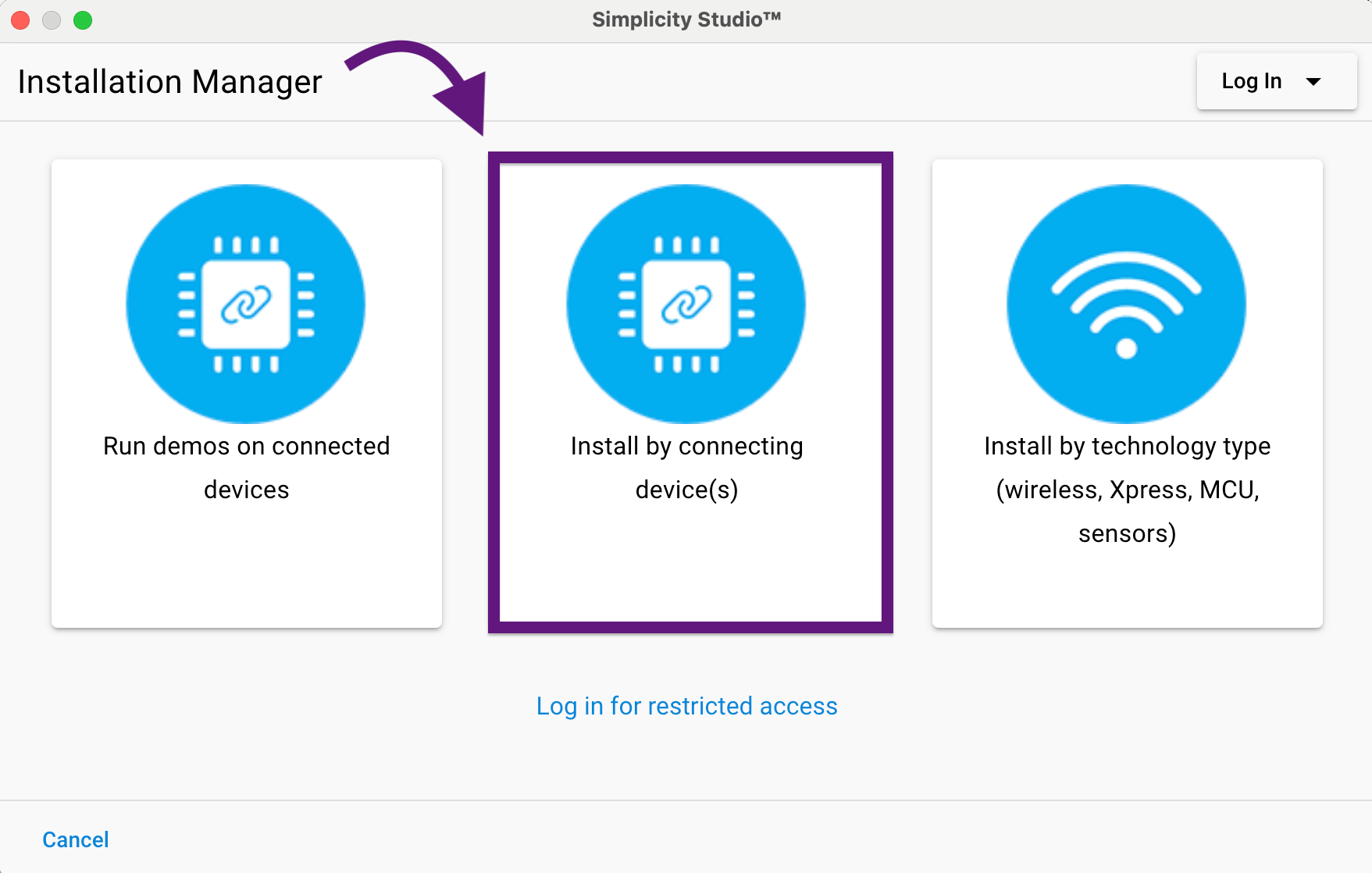
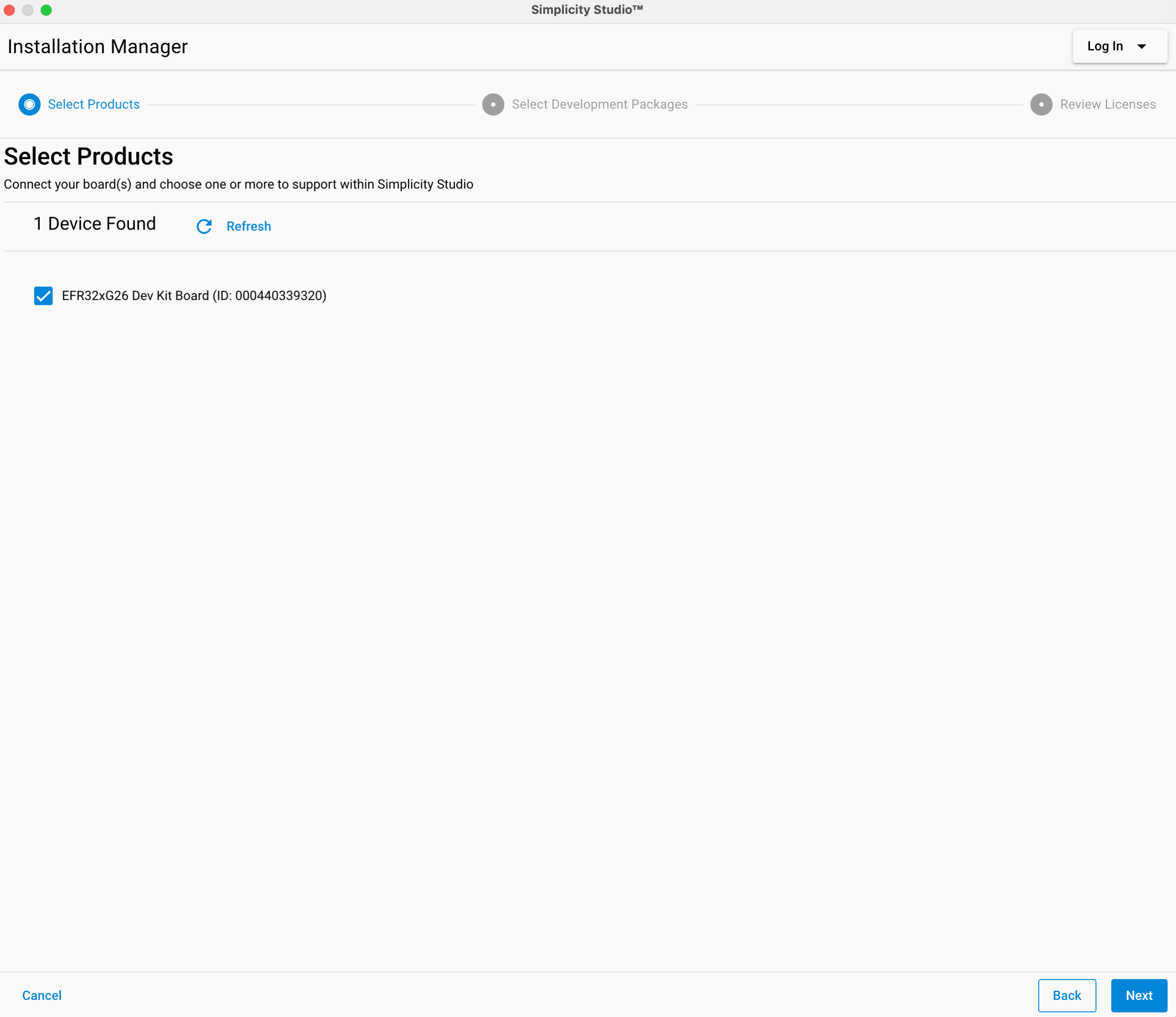
- Select your device from the list.
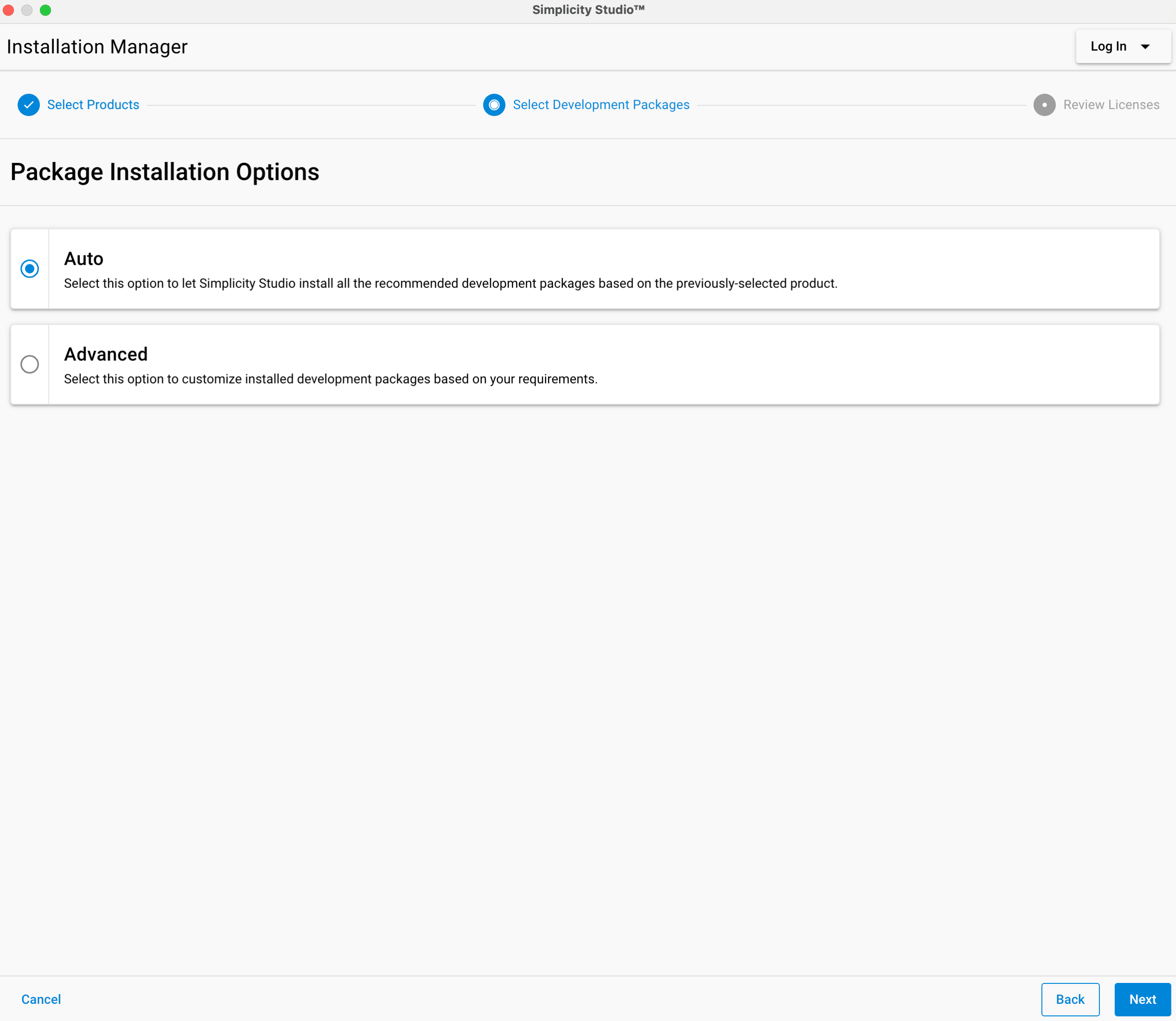
- Choose Auto for the recommended configuration.
- Accept License Agreement.
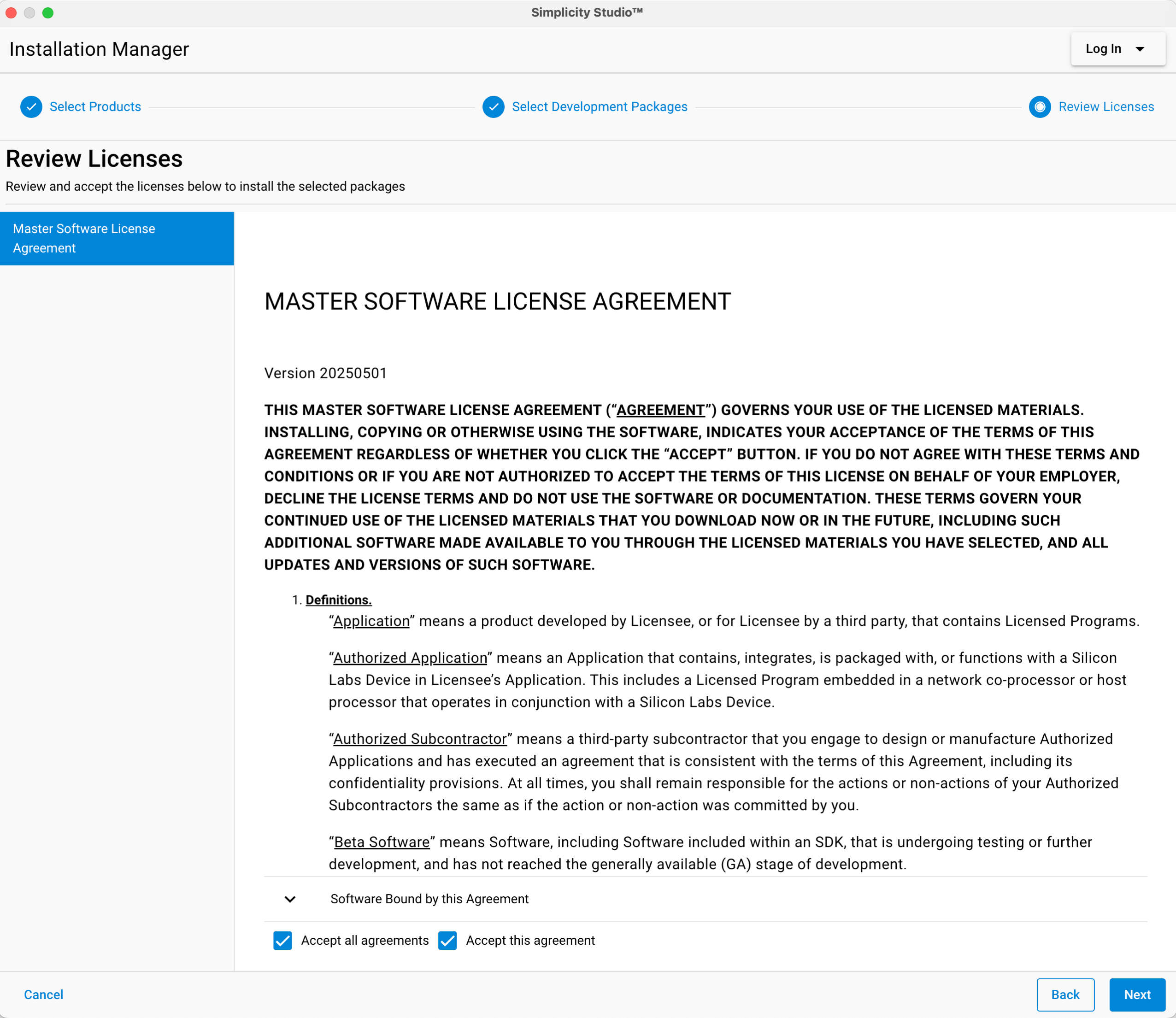
Finally, accept the prompt to restart Simplicity Studio to complete the installation.
Install the AI/ML extension
To run and create machine learning projects in Simplicity Studio, you need to install the AI/ML extension. Follow these steps:
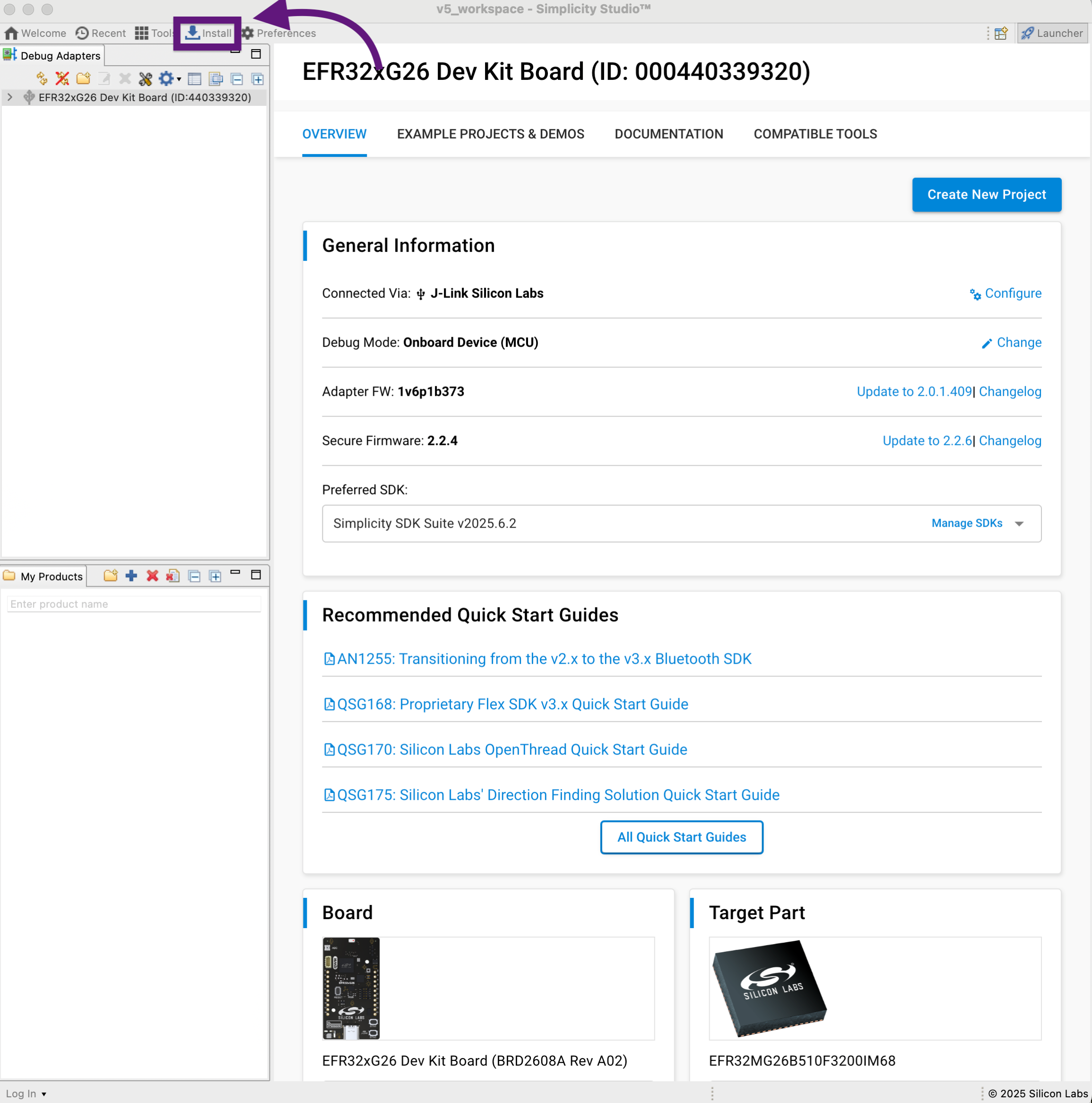
- Open Installation Manager by clicking the Install button.
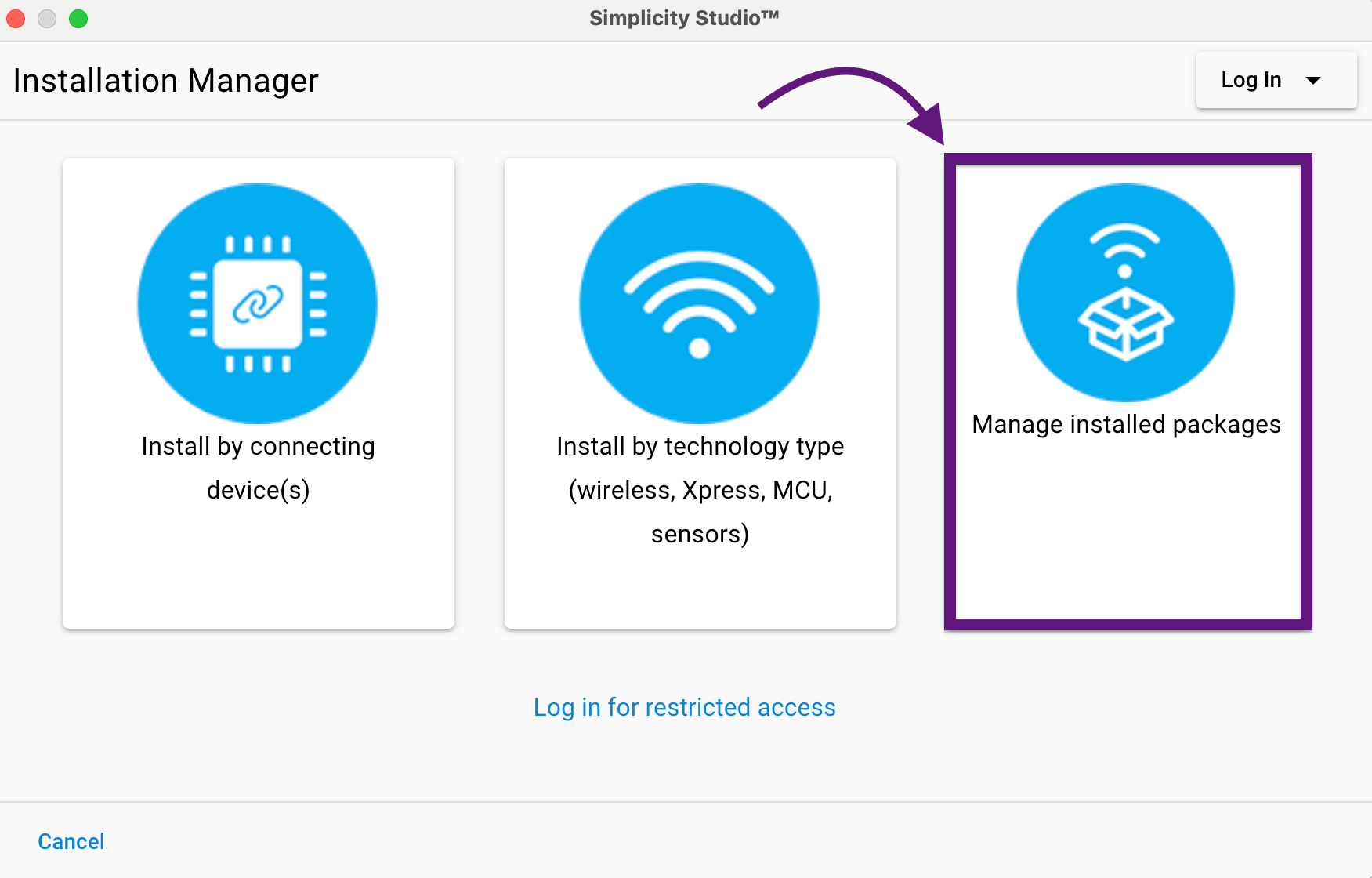
- Select the Manage installed packages option.
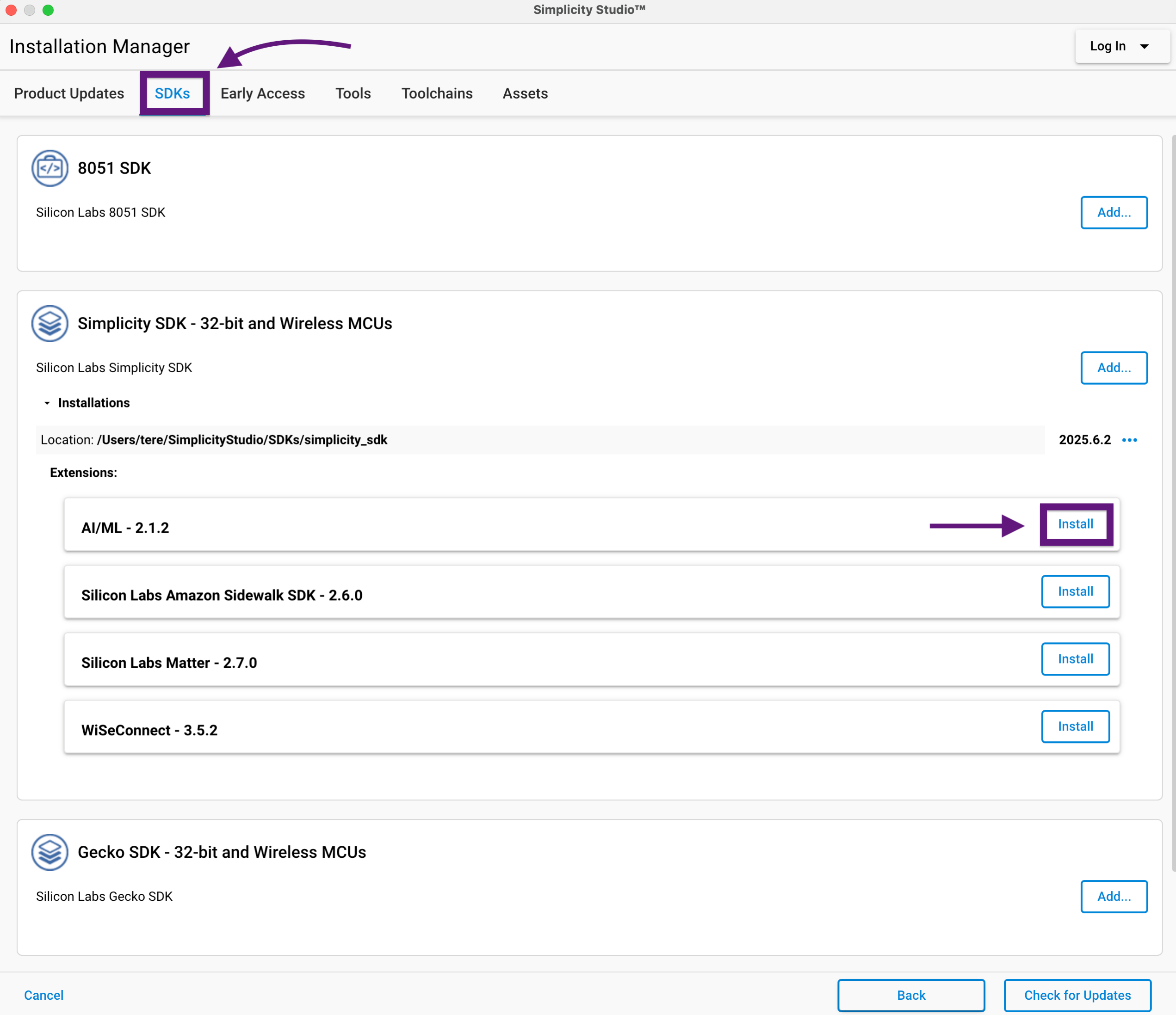
- Go to the SDKs, search for the AI/ML extension, and then click Install.
At this point, you can run the machine learning demos.
Demo applications
Demos allow you to examine device functionality without having to create, build, and flash a project yourself. If you find a demo useful and want to explore or modify the underlying code, you can easily convert it into a project later.
To view the demos available for your board:
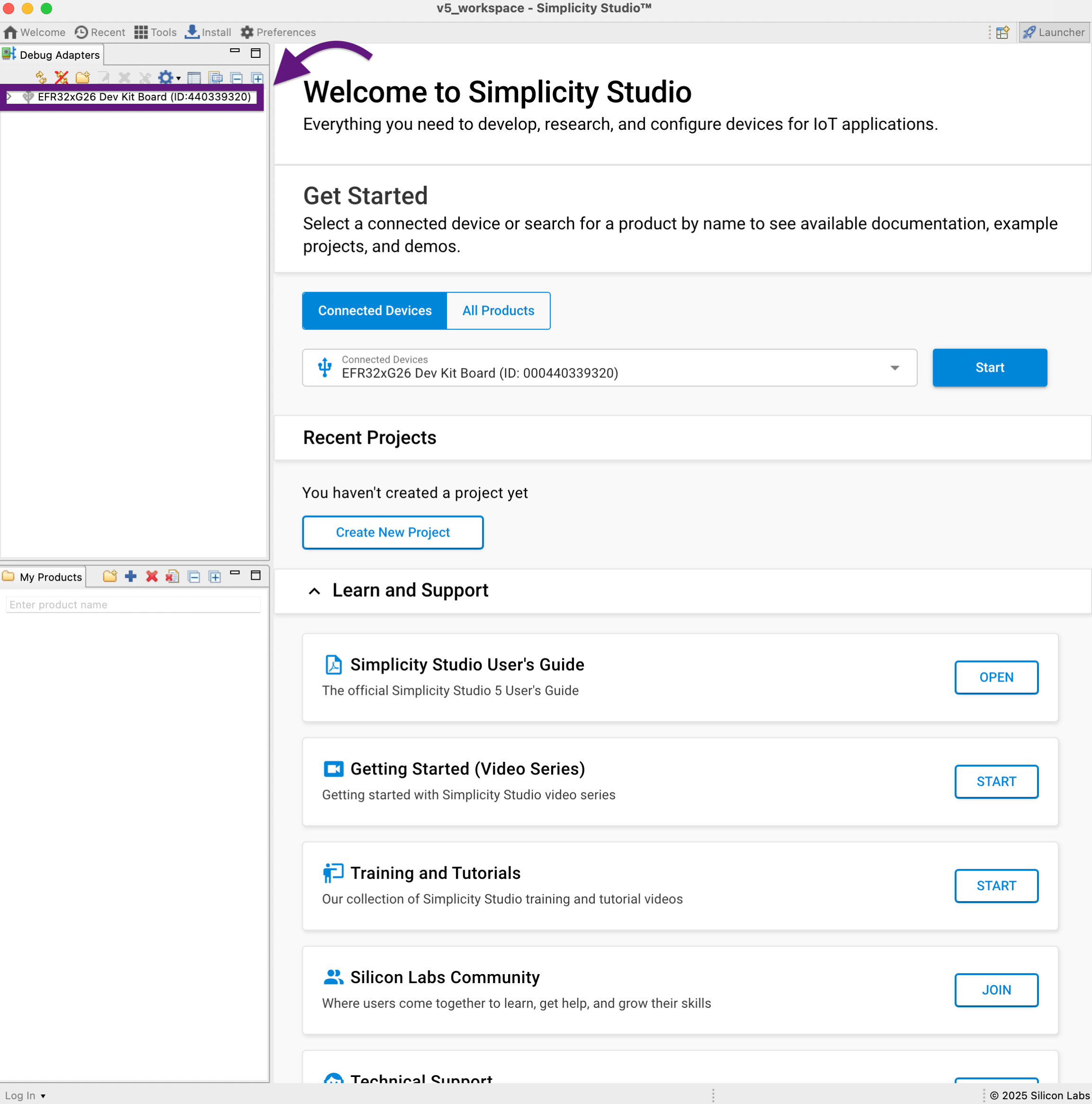
- Open the devices page and select your connected board.
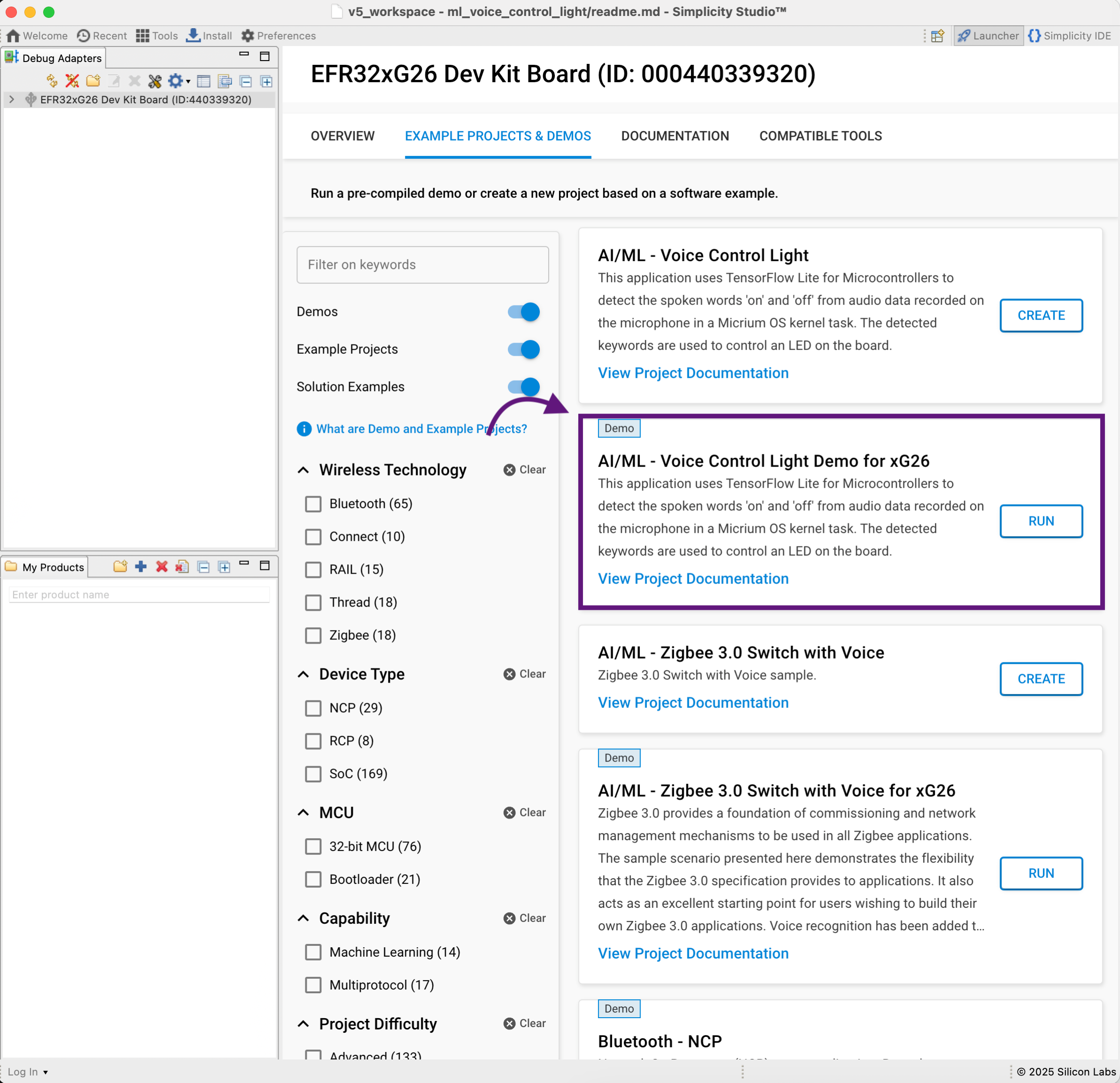
- Go to the Example Projects & Demos tab. Here, search for AI/ML – Voice Control Light Demo and press Run.
To observe the demo behavior and verify that it is running correctly, you can monitor the device output using a serial terminal, as described in the next section.
Viewing device logs via serial terminal
To view logs from the development board, you first need to identify the serial device assigned by your operating system.
Linux/macOS
- Open a terminal and list all available serial devices:
ls /dev/tty.*- You will get something like:
/dev/tty.Bluetooth-Incoming-Port /dev/tty.usbmodemXXXXX- To start printing logs from the device, run the following command:
screen /dev/tty.usbmodemXXXXX 115200 -LThis command opens a serial terminal at 115200 baud and enables logging. You should now see the runtime output from the device.
Windows
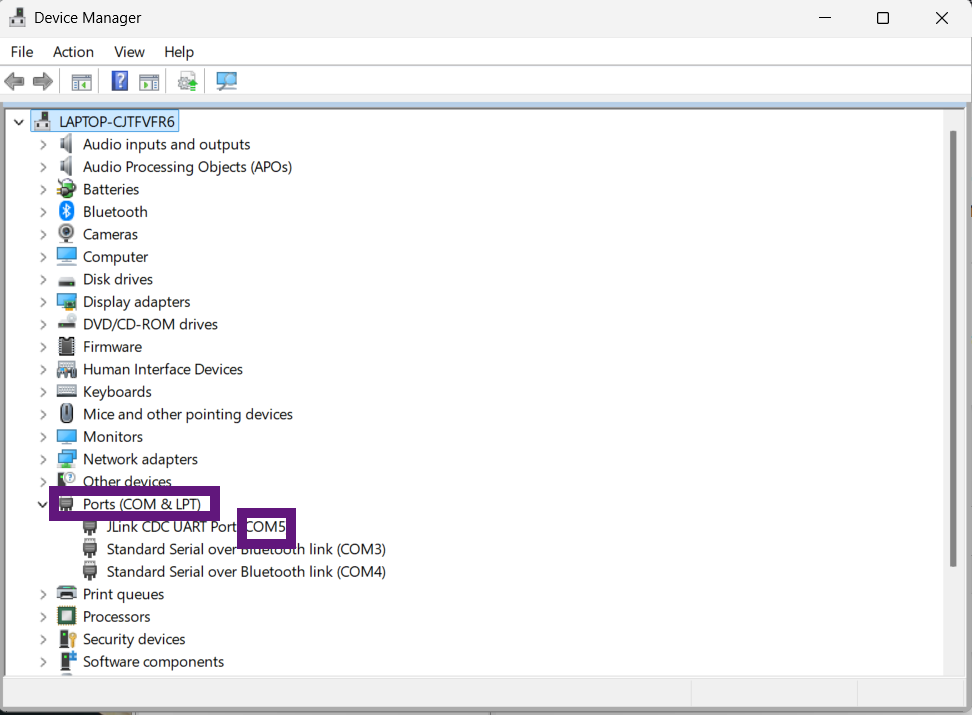
- Find the COM port. To do this, open the Device Manager. Expand Ports (COM & LPT). Then, look for the new COM port that appears when you plug the board in. Take note of the COMx number, for example, COM5.
- Open a serial terminal (PuTTY). If you don’t have one, you can download PuTTY. Fill the fields as follows:
Connection type: Serial
Serial line: COMx
Speed: 115200
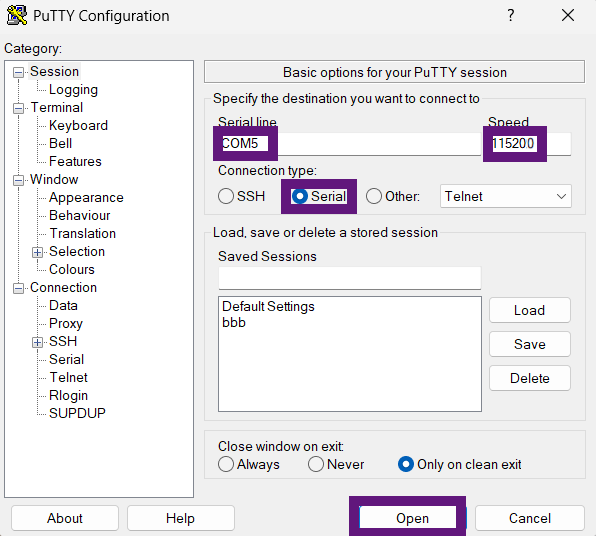
And then, click Open.
You should now see the device logs.
Logs view
Once you have identified the correct serial device and opened the serial terminal as described in the previous section, you should begin to see the device logs printed in real-time. When you say ‘on’ or ‘off’, the demo recognizes the voice command, turns the light on or off accordingly, and prints the corresponding logs in real time. Example output:
Heard off (184) @2595894ms
Heard off (174) @2604494ms
Heard on (196) @2609894ms
Heard off (246) @2618888ms
Heard off (183) @2624294ms
Heard off (177) @2625693ms
Heard off (223) @2675701ms
Heard off (210) @2742294ms
Heard off (239) @2796888ms
Heard off (217) @2798493ms
Heard off (174) @2800294ms
Heard off (202) @2827294ms
Heard off (210) @2879294ms
Heard off (210) @2941894ms
Heard on (202) @2989095ms
Heard off (169) @2994689ms
Heard on (216) @3000494ms
Heard off (253) @3002294ms
Heard on (174) @3050494ms
Create, build, and flash the project
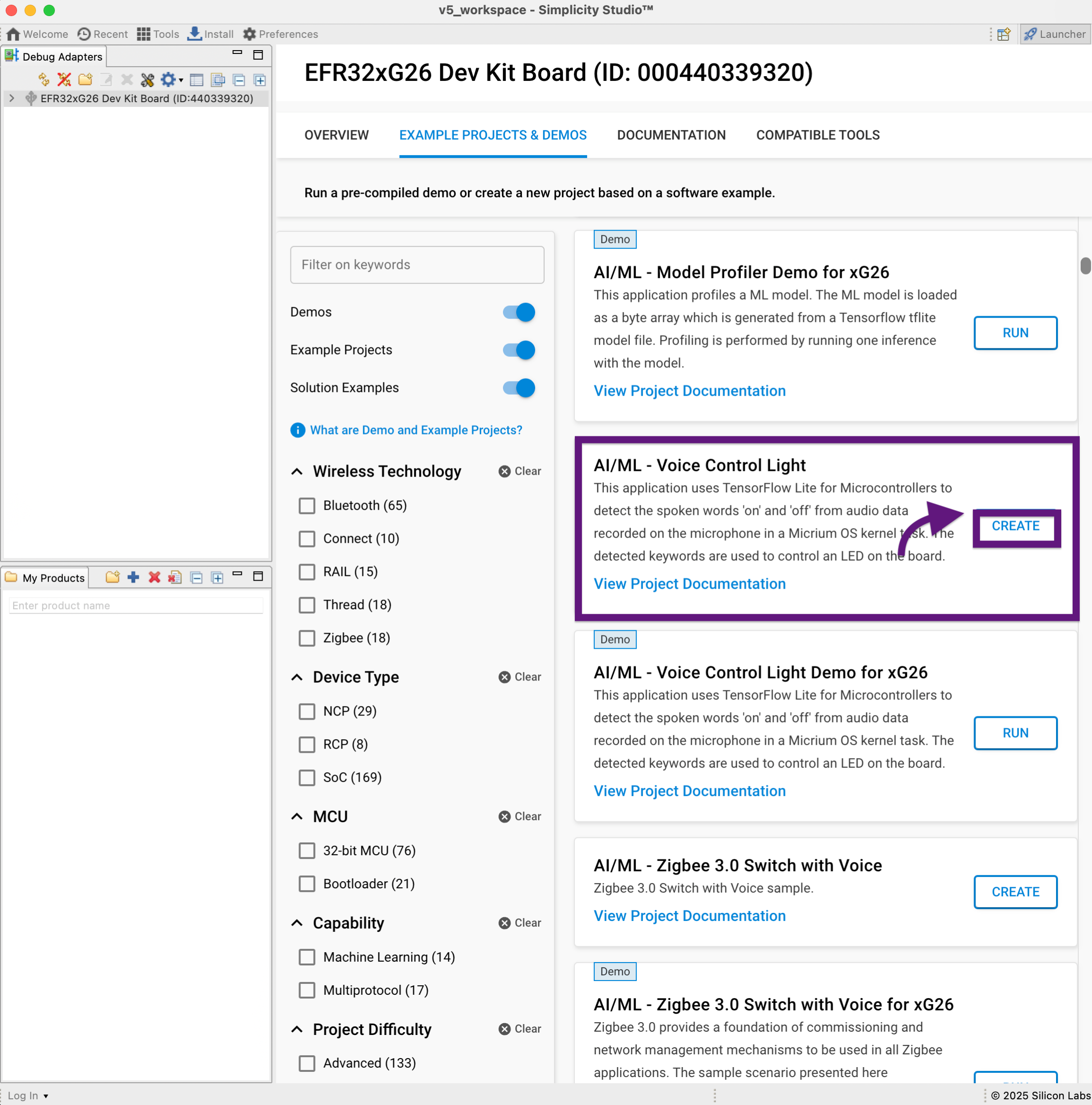
- Open Example Projects & Demos, search for AI/ML – Voice Control Light, and click Create.
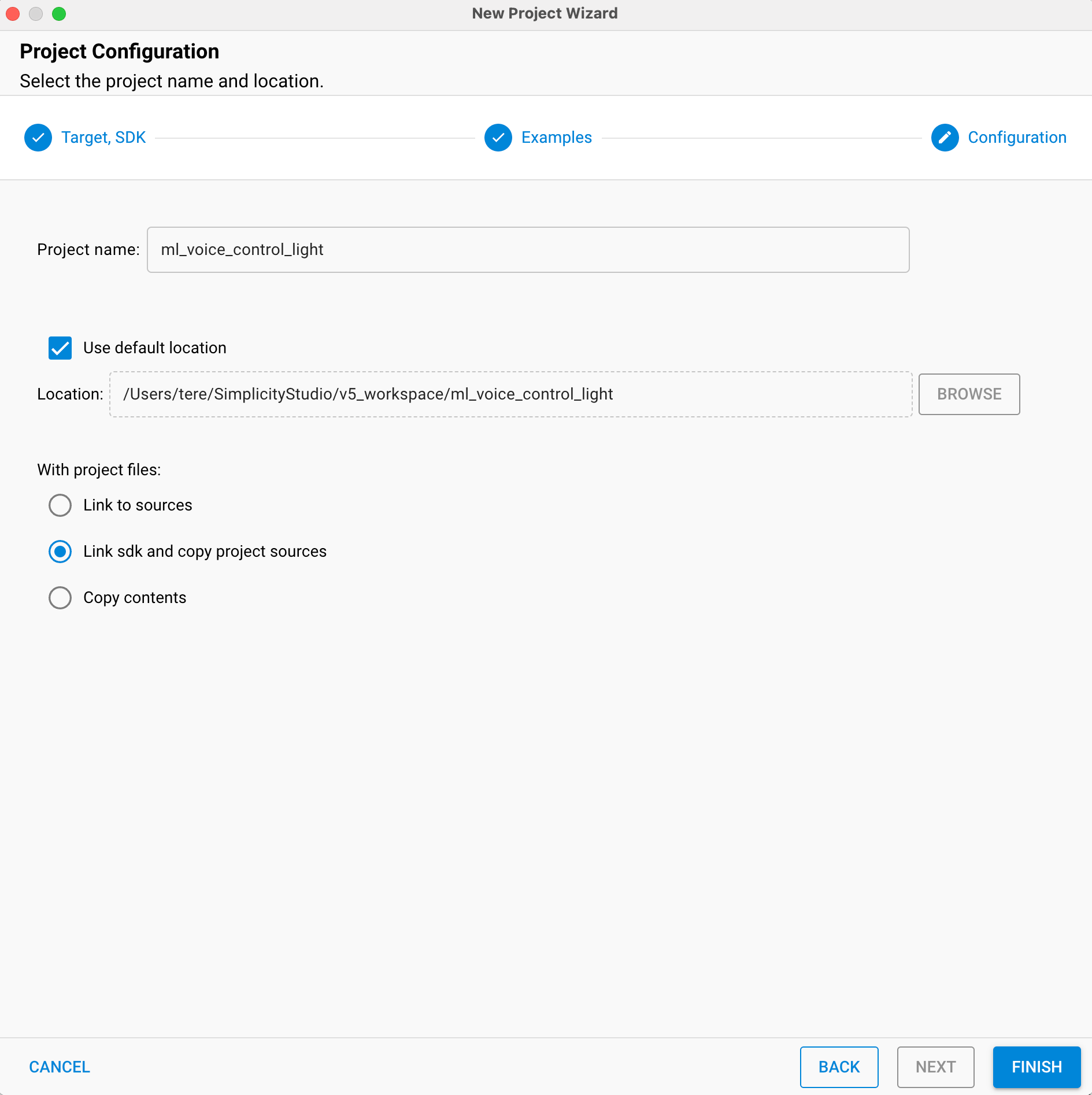
- The New Project Wizard will appear. Select the Link sdk and copy project sources. This option creates a new project in your workspace, links the required SDK libraries, and copies the source files directly into the project. You can choose any project name and location you prefer.
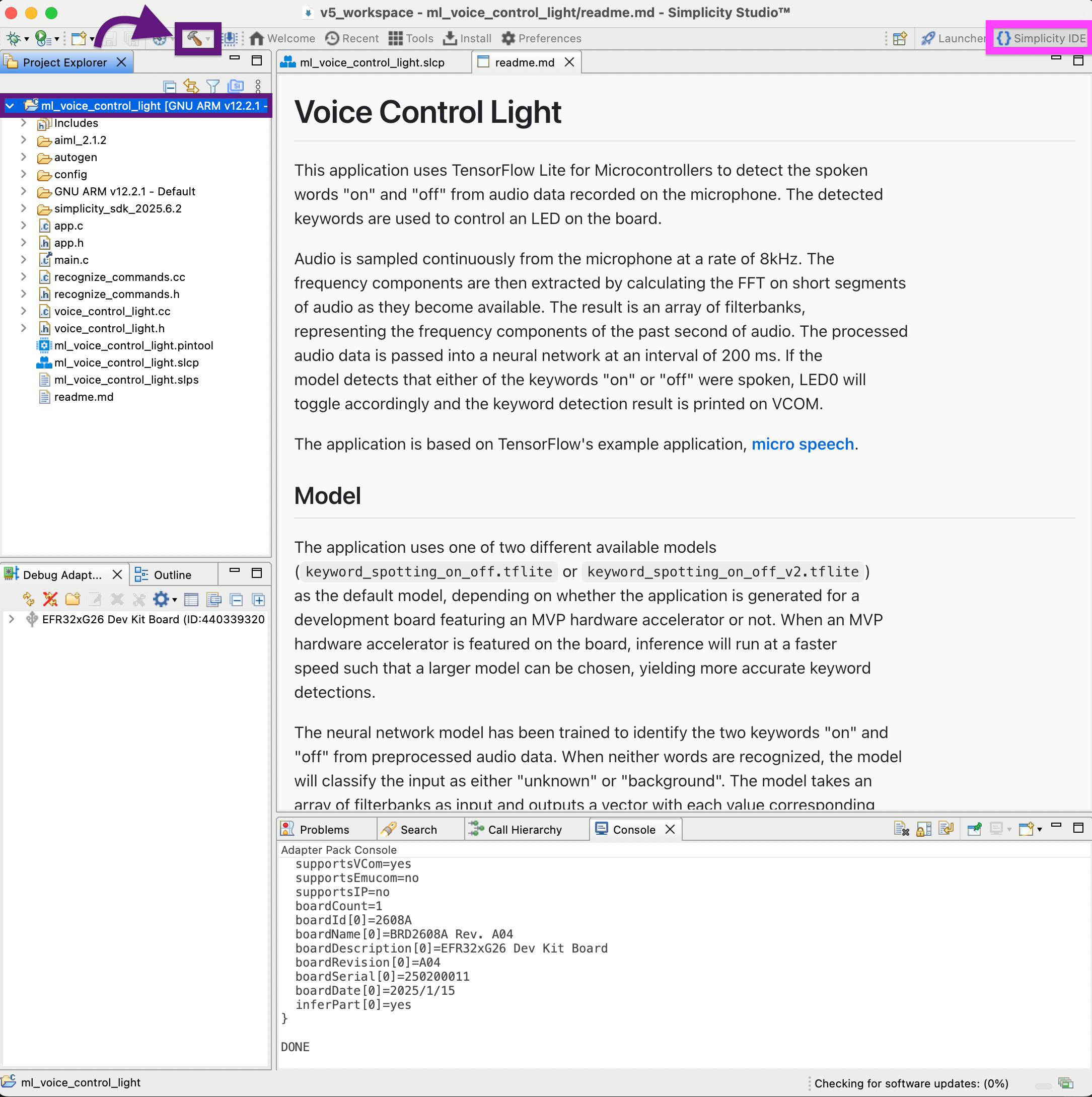
- Once the project is created, the Simplicity IDE tab will open. To build the project, select the top-level of the project in the Project Explorer and click on the hammer icon.
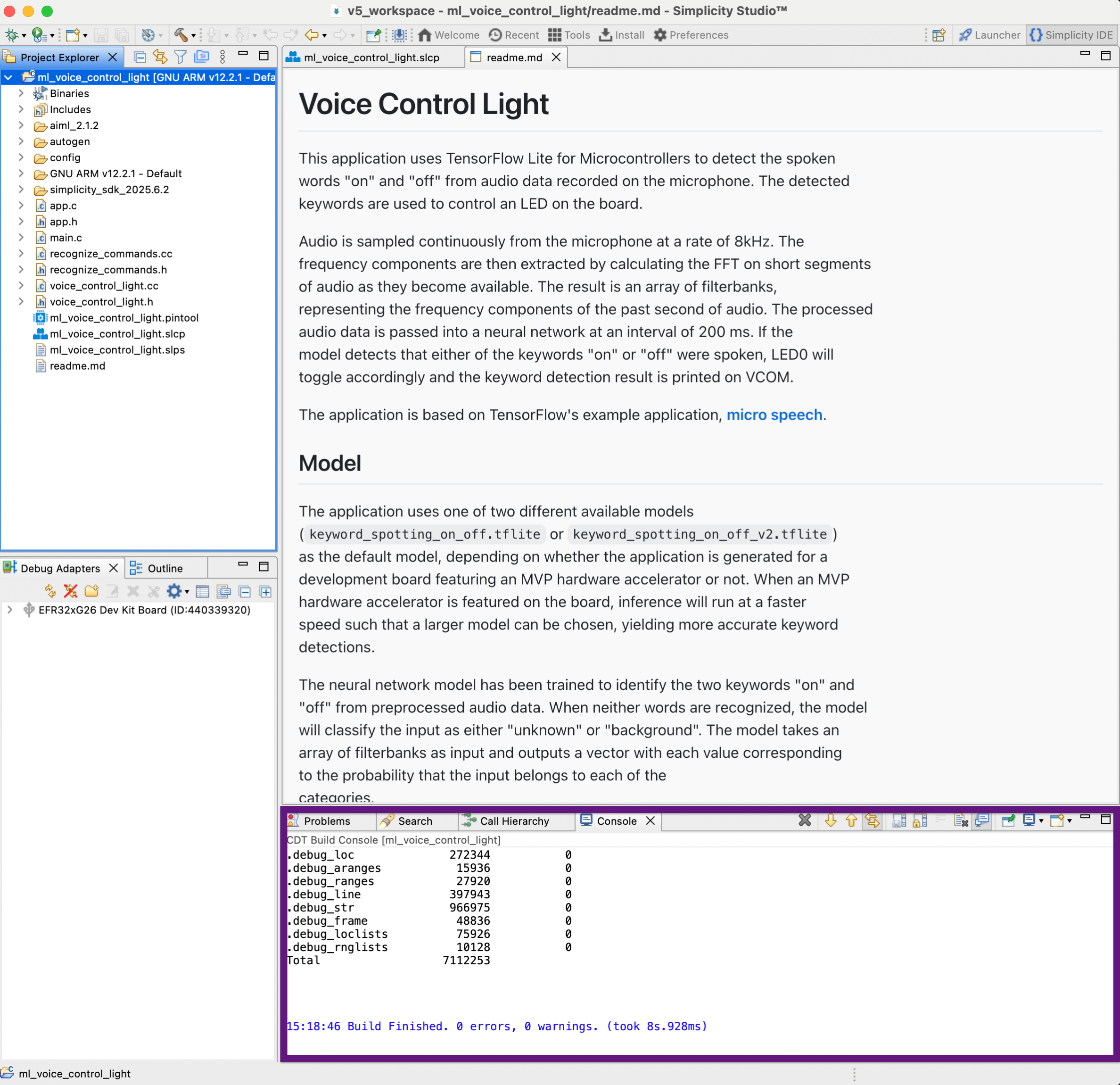
After the build completes, you should see a successful message in the console:
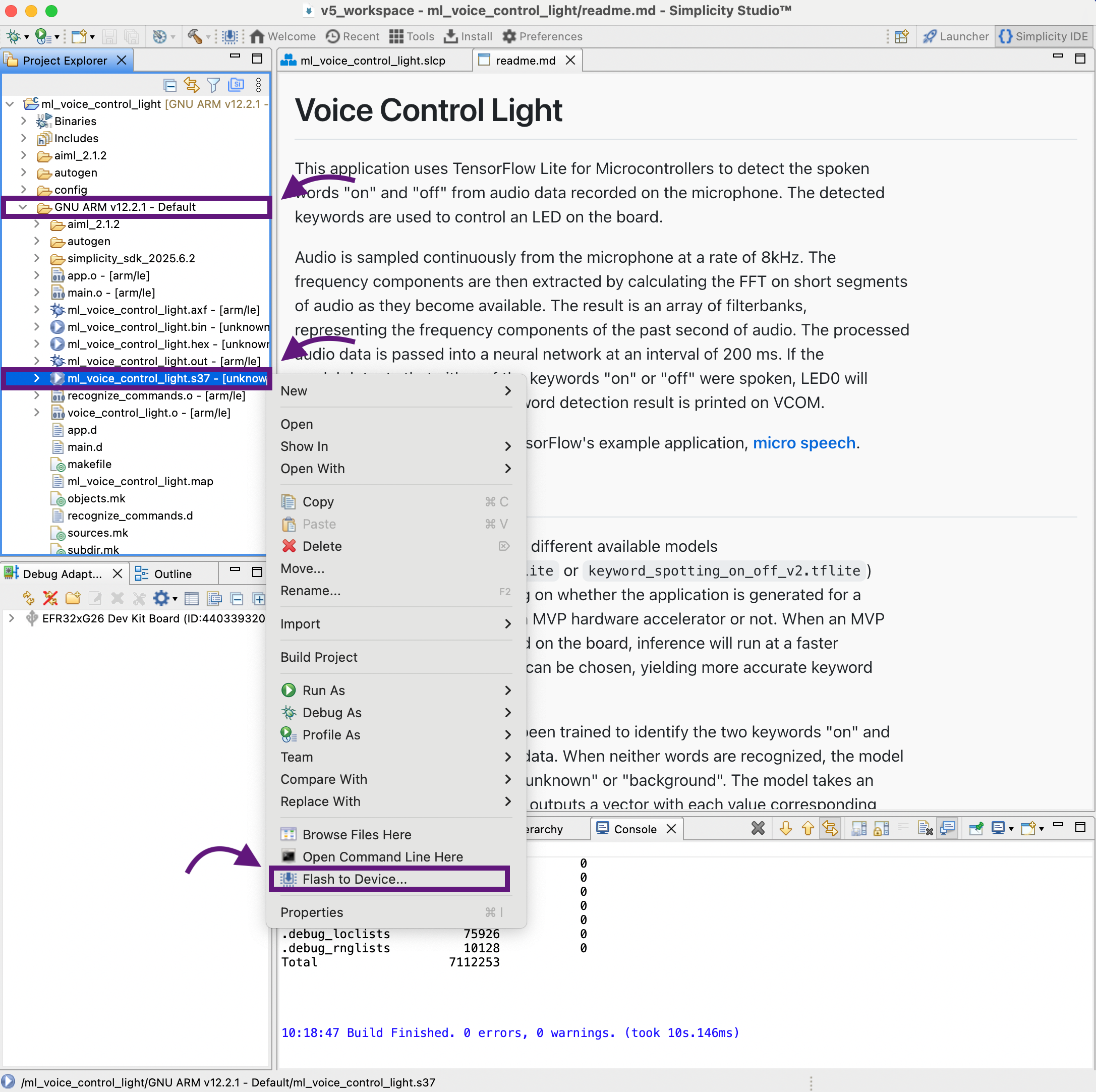
- In the GNU ARM v12.2.1 – Default folder, locate the file ml_voice_control_light.s37. Right-click the file and select Flash to Device.
- The Flash Programmer will be open. Click Program to flash the application to the device.
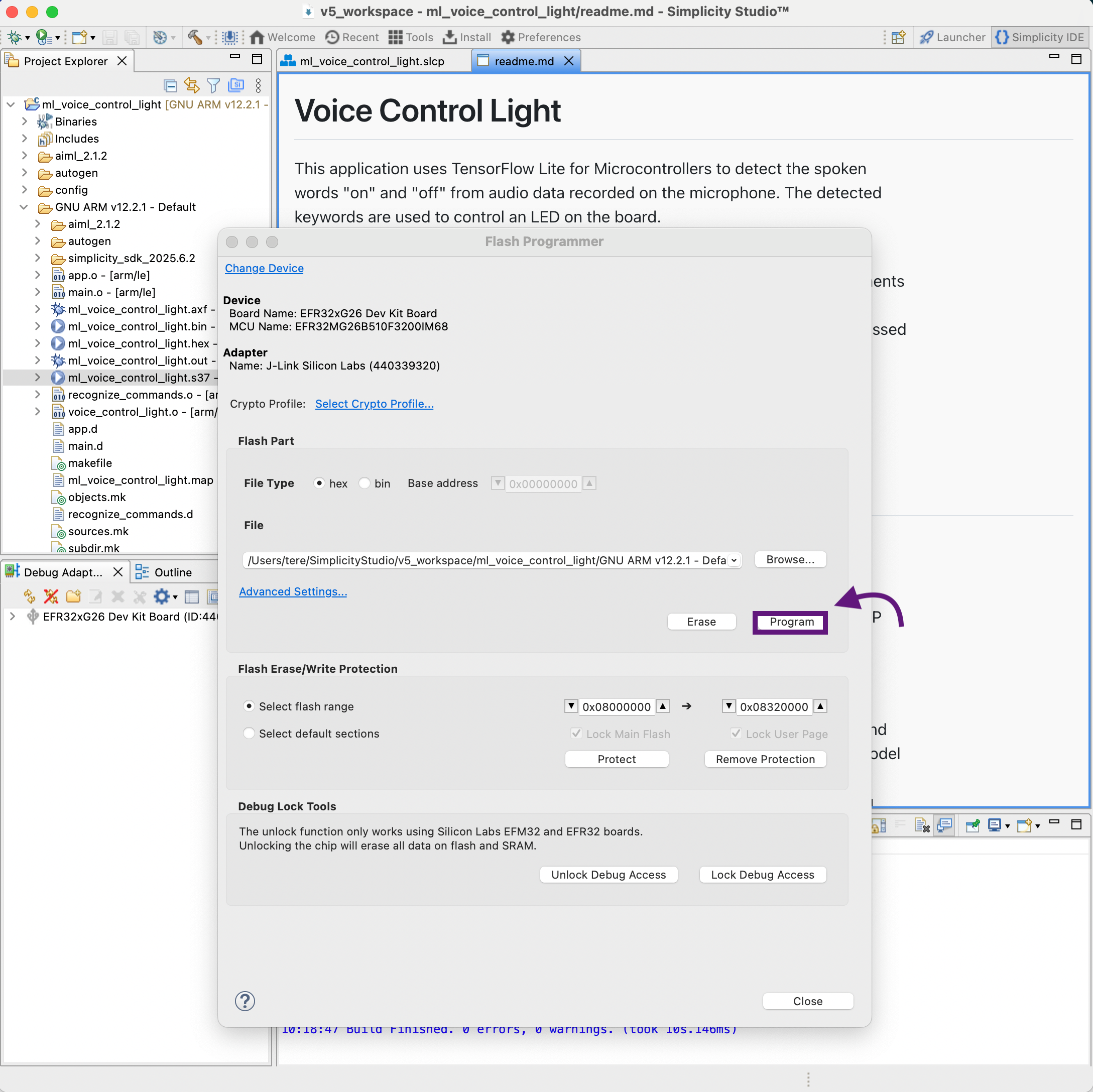
Once programming is complete, follow the steps in Viewing device logs via Serial Terminal to observe the application output.
Krasamo is an Internet of Things consulting company. Contact us to start your IoT journey.